First steps
This walkthrough takes you through the three things most players do first: a timetable for a whole line, a big light signal at the track and a proper driver's cab. You need a working Create railway with at least one station and one train, and Create Railways Navigator installed.
1. One schedule for a whole line
In plain Create every train has its own schedule. Here you build one schedule, store it in CMR as a managed schedule, and let CMR write it into every train of a CRN line.
Create a line in CRN
Open CRN's Global Settings and create a train line (name and colour), as you would without CMR.
Put a train on the line
Give a train a schedule that contains CRN's Travel Section entry with your line. This entry is what makes a train belong to a line. If your trains already run on CRN lines, skip this step.
Build the schedule you want
Take a Create schedule item and fill it in Create's editor with the stops of the line. Keep it in your main hand.
Store it as a managed schedule
Type /cmr to open the Line Management window. In the Schedules tab click New from hand, type a name (for
example RE 1 Coast) and press Enter.
Assign it to the line
Switch to the Lines tab and select your line on the left. Click Choose schedule and pick the schedule you just made.
Apply it
Click Preview to see per train which stops it has now and which it will get. Then click Apply to trains. All trains of the line now run this schedule.
2. A light signal at the track
Create's own signals are small. CMR's Light Signal is the large, German-style display for a Create signal.
Place a Create signal
Put Create's Train Signal on the track as usual. It decides when trains stop; the light signal only shows what it says.
Build the mast
Beside the track, stack three Signal Masts on top of each other. The bottom piece gets its foundation by itself. The foot of the mast must be at most three blocks away from the Create signal.
Put the light signal on top
Stand where the trains come from, look at the mast and place the Light Signal on top. The lamps face you when you place it. Mast and signal are now five blocks high.
Watch it switch
The light signal finds the Create signal by itself and shows its state: green when the line is clear, yellow when the next section is occupied, red at stop.
Set it up
Right-click the signal with Create's wrench to open its settings: the name on its plate (up to 11 characters, a
space starts a second line, such as 63 P2), the signal type (Ks, H/V, semaphore or Hl) and the speed indicators.
3. A train with a driver's console
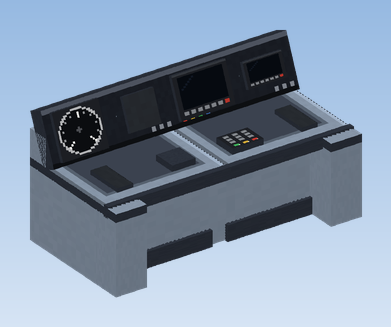
The Driver's Console is a cab you assemble from parts. With a Driving Lever built in it replaces Create's train controls.
Place the console
Before you assemble the train, place a Driver's Console in the cab of the front car, facing the driver like Create's controls. Several consoles side by side make a wide desk; the wrench switches an empty one between straight, left end and right end.
Fit the driving lever
Every console block has four places: a display at the top and a device on the desk, each on the left and on the right half. Hold the Driving Lever and click the desk half where it should go.
Add instruments
Fit more devices the same way, for example a Round Speedometer or a Signal Indicator in the display, an Exterior Light Switch or a Horn Button on the desk. The wrench takes them out again.
Add a seat and lamps
Put a seat in front of the console. Add a Headlight at the front and a Tail Light at the back of the train; they know the direction of travel and switch by themselves.
Assemble and drive
Assemble the train at a station as usual. Create accepts the console with driving lever as its controls. Right-click the lever to take over the train and drive with Create's usual keys. Press H for the horn and L to switch the exterior lights.
What next?
- Close a station for construction work or add an extra stop: Closures and extra stops.
- Build a control desk with a track map: Interlocking.
- Protect your trains with PZB or ETCS: Train Protection.