The line manager window
Everything about lines and schedules happens in one window, Line Management. The same window is also the signal box: its map and route tabs are described in Interlocking.
Opening the window
| How | Notes |
|---|---|
Command /cmr | Works anywhere. Behaves like a signal box without a district (all tabs, whole network). |
| Right-click a Railway Control Desk | The desk for the signal box. |
| Right-click a Track Map Display, Track Diagram Desk or Track Diagram Console | Clicking next to a train or signal opens the window; clicking exactly on one operates it directly. |
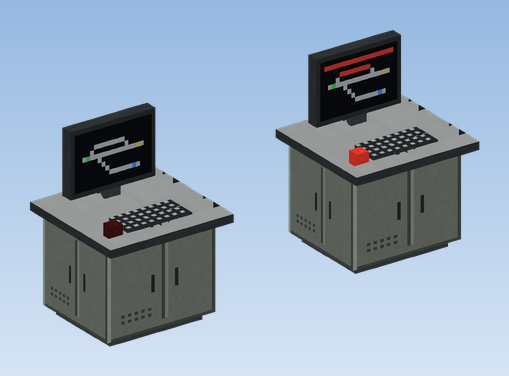
The Railway Control Desk also reports disruptions: while a closure, a profile or a signal lock is active, its red lamp lights, its screen shows a fault line and the block gives off a redstone signal. Craft it from smooth stone, a redstone dust and an observer (see Items and recipes).
The tabs
| Tab | What you do there |
|---|---|
| Lines | All CRN lines with colour and number of trains. Assign schedules, preview, apply, add trains, interval, auto-sync, undo. More |
| Schedules | Your managed schedules. Create, edit, rename, duplicate, delete, get as item, add extra stops. More |
| Stations | Every station a schedule stops at. Close and reopen, replacement stop, reason, call over the loudspeakers, "Effective at once". More |
| Profiles | Saved sets of closures and extra stops, switched by hand or by timetable. More |
| Map | The track map of the signal box. |
| Routes | Saved groups of locked signals. |
| Signals | Light signals, speed boards and switching signals, set from a distance. |
| Areas | Control areas for signal boxes. More |
| Announcements | Your own notices and calls for the platform loudspeakers. |
| Log | Who changed what and when, including automatic changes. |
Working in the window
- Select on the left, act on the right. Most tabs have a list on the left. Select an entry and its details and buttons appear on the right.
- Status line. Answers from the server and all text input appear in the status line at the bottom. Type the text and confirm with Enter or OK; Cancel leaves the input.
- Deleting needs two clicks. After the first click the button reads Really delete?.
- Apply all (n) appears at the top as soon as trains differ from the schedule in force, for example after a closure. The number counts those trains; one click applies all lines with an assigned schedule.
- Refresh at the top right fetches the latest state from the server.
Signs in the lists
- A
!in front of a line's train count means: trains of this line differ from its schedule. The details then say "n train(s) differ from the schedule - apply to update". - Delayed trains (from 30 seconds, as CRN reports them) show their delay behind the name, for example
+1 min 20 s. - In a schedule's entries, closed stops read (closed, skipped) and extra stops start with
+.
The log
The Log tab lists every change with time and player: assignments, applied lines, closures, profiles, signal locks
and so on. Changes the mod made by itself are marked automatic, for example the switch to the night schedule,
auto-sync, an expired closure or a profile switched by its timetable. /cmr log shows the latest entries in chat.
Departure signals
The departure signals Zp 9 and Zp 10 at the platform, how they read the schedule of the train in the station, and how to set them by hand.
Managed schedules
Creating managed schedules from a Create schedule item or from scratch, editing them in the window, and taking them out as an item again.